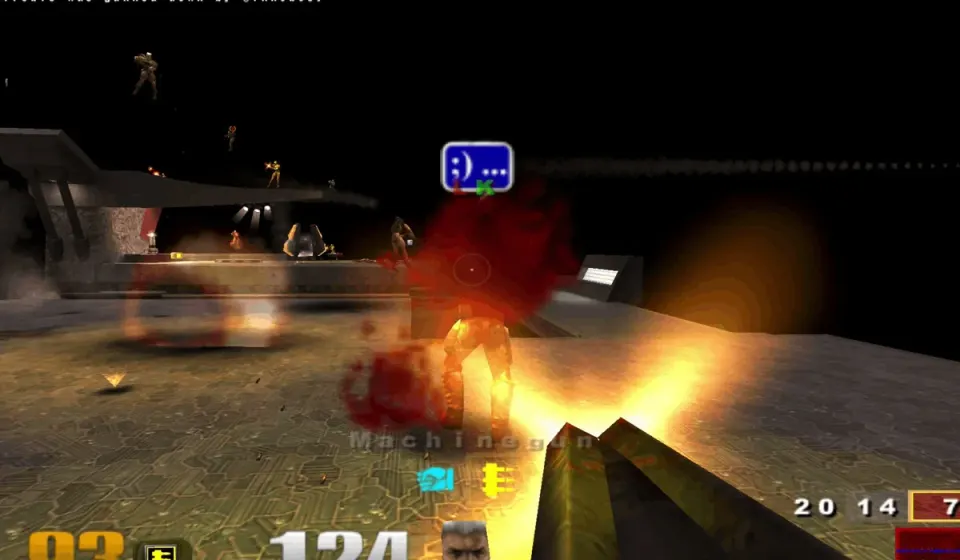
Browser-based · Multiplayer deathmatch · Keyboard, touch and gamepad support advertised
What Is Quake 3?
Quake 3 is a fast arena shooter built around movement, timing and quick decisions in combat. Quake III Arena puts the emphasis on multiplayer fights: move through the map, find useful pickups and try to outplay the other players. A match can get chaotic when several players meet in a narrow corridor, but the basic objective is easy to follow.
The browser version linked here is an unofficial project at q3.pieter.com. It uses Q3JS, which brings an ioquake3-based engine to the web through WebAssembly. You play on the creator’s service instead of installing a traditional desktop client. Radiant Arcade is an independent guide to that browser experience, not an official Quake III Arena release.
How to Play Quake 3 Online
- Start the arena above. The browser opens q3.pieter.com in the player below. You can use the adjacent original-game link if you would rather visit its site directly.
- Enter a player name. Choose a nickname you are comfortable sharing with other players. Keep personal details out of it.
- Choose Play and let the arena load. The browser may need time to prepare game files and establish a multiplayer connection. Give it a moment before restarting.
- Focus the arena. On desktop, click inside the player if the mouse or keyboard does not respond. This gives it focus and lets it capture your pointer.
- Learn the map while you move. Start with a short route, notice where its paths connect and keep moving between encounters. You can focus on the leaderboard after the controls feel familiar.
Before you join, the original project shows player activity, top-player rankings and information about current and next maps. Those details can change, so check the live game page for the session you are joining.
Quake 3 Controls: Keyboard, Mouse, Mobile and Gamepad
These are familiar Quake III Arena desktop bindings and the input options advertised by the browser project. Bindings can differ if project settings have changed, so use the in-game controls menu when you need the exact mapping.
Keyboard and mouse
| Action | Typical desktop input |
|---|---|
| Move and strafe | W A S D |
| Look and aim | Move the mouse |
| Fire | Left mouse button |
| Jump | Space |
| Crouch | C |
| Change weapons | Mouse wheel or weapon number keys |
| Check scores | Tab |
| Open menu or release mouse | Esc |
Quake 3 feels more manageable when you can move and look at the same time. Try holding a strafe key as you turn through a corner instead of stopping before every shot. If your mouse starts moving the browser pointer instead of your aim, click back into the game. Press Esc when you need to leave mouse capture or open the game menu.
Playing on a phone or tablet
The Q3JS browser client supports touch input. On a compatible mobile browser, open the original game, rotate the device to landscape and use the controls displayed over the arena. The documented layout puts movement under your left thumb and looking and combat on the right, with actions for firing, jumping, crouching and switching weapons.
Touch controls make it possible to join without a keyboard, though quick turns and precise aim can feel different from desktop play. If the interface is cramped, check the device orientation first. Fullscreen support also varies by browser, so a missing fullscreen control does not automatically mean loading has failed.
Using a controller
The project advertises gamepad support. Connect a compatible controller before starting the match, then check the game’s own prompts or settings. In a typical dual-stick shooter layout, one stick moves and the other aims, with buttons and triggers used for combat. Exact bindings depend on the controller, browser and operating system.
If the controller is connected but unresponsive, click the game area, check that the browser recognizes the device, and try the original site outside the embedded window. A keyboard and mouse remain a useful desktop fallback.
Your First Five Minutes in the Arena
Learn one route first. Do not try to memorise the whole map while an opponent is chasing you. From your starting point, find two connected areas and practise moving between them. Notice where you can turn without getting trapped and where other players tend to enter.
Keep your aim calm. When another player crosses the screen, a sharp mouse swing can make you lose track of the room. Make a smaller correction and keep moving sideways. Staying oriented matters more than landing a spectacular shot in your first fights.
Notice pickups as you move. Combat is not only about the weapon you spawn with. Learn where useful items appear, then build a path that brings you through those spaces. Start by understanding which areas are worth revisiting and which leave you exposed.
Use each respawn to notice one mistake. Maybe you stopped in a doorway, ran into a busy area with no exit, or lost an opponent while turning. Choose one adjustment for the next life. A small improvement in positioning is useful progress.
Watch the match instead of chasing the leaderboard. A player who stays in motion, learns the map and arrives at fights facing the right direction is building habits that matter more than one lucky frag.
Multiplayer Matches, Maps and Leaderboards
Quake 3 online play in this project centers on shared arenas. When you choose Play, you join the service at q3.pieter.com; you are not creating a private room on Radiant Arcade. Your experience changes with the current map and the players connected. A busy session can bring constant action, while a quieter one gives you room to practise.
The original landing page shows the current map and a preview of the next one, alongside player rankings for different time periods. A map or ranking can change while you are reading this guide, so use the project’s page for current session details. Q3JS also has a separate server browser if you want to look beyond this project’s arena.
Do not assume an empty arena means the game is broken. Likewise, a player count from another page can be out of date by the time you join. The game itself is the best place to check its current session.
Quake 3 Not Loading? Try These Checks
The game stays black or keeps loading
Open the project directly at q3.pieter.com and see whether its own launch screen loads. A browser-based 3D game still needs to download files and start its rendering engine. If progress is moving, let it continue. If it remains stuck, try a fresh tab, a current browser and a stable connection before clearing saved site data.
Keyboard input works, but mouse aiming does not
Click once inside the playable area. Browsers require a deliberate click before many games can capture the pointer. Press Esc to leave capture or return to the menu. If another tab or browser control takes focus, click the arena again after switching back.
A gamepad or touch controls are missing
On mobile, turn the device to landscape and confirm the original game has started, rather than only its landing screen. On desktop, connect the controller before choosing Play and check whether the game detects it. Support is advertised, but devices and browsers can behave differently.
The match feels delayed
Close extra video streams or other heavy tabs and try again. Lag can come from rendering performance, the connection or the multiplayer server. Change one thing at a time so it is clear what helped. If the issue appears only in an embedded window, use the original website for comparison.
For more help with black screens, fullscreen and lost input, read our browser game loading guide.
Quake 3 vs. QuakeWorld: Which Should You Play?
Both projects offer old-school multiplayer shooting in a browser, but they are different games. This page links to the Quake III Arena-style project, with its own arena maps, rankings and advertised phone and controller support. Our QuakeWorld browser guide covers the earlier QuakeWorld multiplayer experience hosted at q1.pieter.com.
Choose this arena if you want Quake III-style combat and the input options described above. Choose QuakeWorld if you would rather explore the earlier multiplayer game. Neither browser link is a promise that every part of the original retail releases is included.
Quake 3 FAQ
Can I play Quake 3 online for free?
The linked q3.pieter.com project presents itself as a non-commercial, unofficial browser experience and offers a Play button without a purchase step. You do not need a desktop installer to open it. Access and availability are managed by the independent project operator.
Where can I play Quake 3 in my browser?
The Quake III Arena project covered here is at q3.pieter.com. Enter a player name and choose Play inside the game. Q3JS also maintains a separate server browser at q3js.com, where the available servers and maps can differ.
Do I need to install anything?
There is no traditional desktop installer for this browser entry. Your browser still downloads the files needed for a session, so the first load may take longer than a normal webpage. Keep the game open while it prepares those resources.
Is Quake 3 multiplayer in the browser?
Yes. The linked project opens an online multiplayer arena. The players and map you encounter depend on the session at the time you join. This page does not present it as an offline game or a single-player campaign.
Can I play Quake 3 on a phone?
The original project advertises mobile support, and Q3JS documents touch controls for compatible phone browsers. Turn the phone to landscape and use the on-screen controls after the game starts. Device performance and fullscreen support vary.
Does Quake 3 support a gamepad?
The original browser project advertises gamepad support. Connect a compatible controller and check the game’s own controls after it opens. Browser, device, and controller mappings can differ.
How do I get my mouse back?
Press Esc to leave mouse capture or open the game menu. To resume, click inside the arena to give the game focus again.
Original Game and Credits
Open Pieter’s Quake III Arena project to join a multiplayer match and see current session details. The project credits Q3JS, the browser engine maintained at q3js.com. Its mobile controls are documented in the Q3JS phone guide.
This is an independent guide to an unofficial, non-commercial browser project. It is not affiliated with Pieter.com, Q3JS, id Software or ZeniMax. The game creators and rights holders retain ownership of their work.